NativeAOTは、.NETアプリケーションをネイティブコードにコンパイルする技術です。 NativeAOTはJITではなくAOTでコンパイルすることで、いくつかのメリットがあります。スタートアップが速くなり、メモリ使用量も少なくなります。また、動作環境にランタイムが不要なため、JITが使えない環境でも動作しますし、デプロイも簡素化されます。
この記事では、C#のNativeAOTアプリケーションをDockerコンテナ内でビルドする方法について解説します。 ここ数年はコンテナもARM64環境で動作して当然となってきているため、.NETのNativeAOTサーバーもARM64対応しましょう。
ゴール
この記事のゴールは、マルチプラットフォーム対応のコンテナビルドである次のコマンドを実行できるようにすることです。
$ docker buildx build --platform linux/amd64,linux/arm64 -f Dockerfile .
また、イメージサイズもできるだけ小さくしてみましょう。
NativeAOTのプロジェクトを用意する
ASP.NET Core Web APIのNativeAOTプロジェクトを用意しましょう。以下のコマンドでプロジェクトを作成するとNativeAOT対応のWeb APIプロジェクトが作成されます。
$ mkdir test
$ dotnet new webapiaot
生成されたものを確認しましょう。
$ ls -l
total 32
-rw-rw-r--    1 guitarrapc guitarrapc      1404 Nov 23 02:59 Program.cs
drwxrwxr-x    2 guitarrapc guitarrapc         0 Nov 23 01:21 Properties
-rw-rw-r--    1 guitarrapc guitarrapc       127 Nov 23 01:21 appsettings.Development.json
-rw-rw-r--    1 guitarrapc guitarrapc       151 Nov 23 01:21 appsettings.json
-rw-rw-r--    1 guitarrapc guitarrapc       642 Nov 23 01:23 test.csproj
-rw-rw-r--    1 guitarrapc guitarrapc       255 Nov 23 01:23 test.csproj.user
-rw-rw-r--    1 guitarrapc guitarrapc       180 Nov 23 01:21 test.http
-rw-rw-r--    1 guitarrapc guitarrapc      1119 Nov 23 01:22 test.sln
test.csprojは次のようになっています。NativeAOT対応のために<PublishAot>true</PublishAot>が指定されていることがポイントです。また、Unicodeやタイムゾーンといったグローバリゼーション不要であることが<InvariantGlobalization>true</InvariantGlobalization>で指定されています。ここは扱うデータによって必要かどうかが変わります。
<Project Sdk="Microsoft.NET.Sdk.Web">

  <PropertyGroup>
    <TargetFramework>net10.0</TargetFramework>
    <Nullable>enable</Nullable>
    <ImplicitUsings>enable</ImplicitUsings>
    <InvariantGlobalization>true</InvariantGlobalization>
    <PublishAot>true</PublishAot>
    <DockerDefaultTargetOS>Linux</DockerDefaultTargetOS>
    <DockerfileContext>.</DockerfileContext>
  </PropertyGroup>

  <ItemGroup>
    <PackageReference Include="Microsoft.AspNetCore.OpenApi" Version="10.0.0" />
  </ItemGroup>

</Project>
Program.csは次のようになっています。System.Text.Jsonがデフォルトのリフレクションベースではなく、ソースジェネレーターベースになっていることがポイントです。
using System.Text.Json.Serialization;
using Microsoft.AspNetCore.Http.HttpResults;

var builder = WebApplication.CreateSlimBuilder(args);

builder.Services.ConfigureHttpJsonOptions(options =>
{
    options.SerializerOptions.TypeInfoResolverChain.Insert(0, AppJsonSerializerContext.Default);
});

// Learn more about configuring OpenAPI at https://aka.ms/aspnet/openapi
builder.Services.AddOpenApi();

var app = builder.Build();

if (app.Environment.IsDevelopment())
{
    app.MapOpenApi();
}

Todo[] sampleTodos =
[
    new(1, "Walk the dog"),
    new(2, "Do the dishes", DateOnly.FromDateTime(DateTime.Now)),
    new(3, "Do the laundry", DateOnly.FromDateTime(DateTime.Now.AddDays(1))),
    new(4, "Clean the bathroom"),
    new(5, "Clean the car", DateOnly.FromDateTime(DateTime.Now.AddDays(2)))
];

var todosApi = app.MapGroup("/todos");
todosApi.MapGet("/", () => sampleTodos)
        .WithName("GetTodos");

todosApi.MapGet("/{id}", Results<Ok<Todo>, NotFound> (int id) =>
    sampleTodos.FirstOrDefault(a => a.Id == id) is { } todo
        ? TypedResults.Ok(todo)
        : TypedResults.NotFound())
    .WithName("GetTodoById");

app.Run();

public record Todo(int Id, string? Title, DateOnly? DueBy = null, bool IsComplete = false);

[JsonSerializable(typeof(Todo[]))]
internal partial class AppJsonSerializerContext : JsonSerializerContext
{

}
Dockerfileを用意する
コマンドからプロジェクトを作るとDockerfileは生成されません1。このためVisual Studioを使って、csprojを右クリック > Add > Container SupportでDockerfileを生成します。
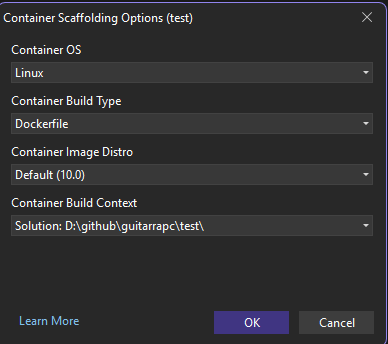
次のようなDockerfileが生成されます。
# See https://aka.ms/customizecontainer to learn how to customize your debug container and how Visual Studio uses this Dockerfile to build your images for faster debugging.

# These ARGs allow for swapping out the base used to make the final image when debugging from VS
ARG LAUNCHING_FROM_VS
# This sets the base image for final, but only if LAUNCHING_FROM_VS has been defined
ARG FINAL_BASE_IMAGE=${LAUNCHING_FROM_VS:+aotdebug}

# This stage is used when running from VS in fast mode (Default for Debug configuration)
FROM mcr.microsoft.com/dotnet/aspnet:10.0 AS base
USER $APP_UID
WORKDIR /app
EXPOSE 8080


# This stage is used to build the service project
FROM mcr.microsoft.com/dotnet/sdk:10.0 AS build
# Install clang/zlib1g-dev dependencies for publishing to native
RUN apt-get update \
    && apt-get install -y --no-install-recommends \
    clang zlib1g-dev
ARG BUILD_CONFIGURATION=Release
WORKDIR /src
COPY ["test.csproj", "."]
RUN dotnet restore "./test.csproj"
COPY . .
WORKDIR "/src/."
RUN dotnet build "./test.csproj" -c $BUILD_CONFIGURATION -o /app/build

# This stage is used to publish the service project to be copied to the final stage
FROM build AS publish
ARG BUILD_CONFIGURATION=Release
RUN dotnet publish "./test.csproj" -c $BUILD_CONFIGURATION -o /app/publish /p:UseAppHost=true

# This stage is used as the base for the final stage when launching from VS to support debugging in regular mode (Default when not using the Debug configuration)
FROM base AS aotdebug
USER root
# Install GDB to support native debugging
RUN apt-get update \
    && apt-get install -y --no-install-recommends \
    gdb
USER app

# This stage is used in production or when running from VS in regular mode (Default when not using the Debug configuration)
FROM ${FINAL_BASE_IMAGE:-mcr.microsoft.com/dotnet/runtime-deps:10.0} AS final
WORKDIR /app
EXPOSE 8080
COPY --from=publish /app/publish .
ENTRYPOINT ["./test"]
このDockerfileはx64環境でのビルドである次のコマンドでのビルドに対応しています。
# amd64環境でプラットフォームを省略するとlinux/amd64と同義
$ docker buildx build -f Dockerfile .
# 直接指定してもいい
$ docker buildx build --platform linux/amd64 -t test -f Dockerfile .
この状態で、Visual StudioからDockerコンテナでデバッグ実行すると、NativeAOTアプリケーションがビルドされ、コンテナ内で実行されます。

http://localhost:8080/todosにアクセスすると、次のようなJSONレスポンスが返ってきます。
[{"id":1,"title":"Walk the dog","dueBy":null,"isComplete":false},{"id":2,"title":"Do the dishes","dueBy":"2025-11-22","isComplete":false},{"id":3,"title":"Do the laundry","dueBy":"2025-11-23","isComplete":false},{"id":4,"title":"Clean the bathroom","dueBy":null,"isComplete":false},{"id":5,"title":"Clean the car","dueBy":"2025-11-24","isComplete":false}]
これで下準備は完了です。
NativeAOTアプリケーションをARM64でビルドする
先ほどのDockerfileはARM64プラットフォームではビルドできません。
$ docker buildx build --platform linux/arm64 -t test -f Dockerfile .
[+] Building 30.3s (8/17)                                                                          docker:desktop-linux
 => [internal] load build definition from Dockerfile                                                               0.0s
 => => transferring dockerfile: 2.00kB                                                                             0.0s
 => [internal] load metadata for mcr.microsoft.com/dotnet/runtime-deps:10.0                                        0.2s
 => [internal] load metadata for mcr.microsoft.com/dotnet/sdk:10.0                                                 0.5s
 => [internal] load .dockerignore                                                                                  0.0s
 => => transferring context: 464B                                                                                  0.0s
 => [build 1/8] FROM mcr.microsoft.com/dotnet/sdk:10.0@sha256:c7445f141c04f1a6b454181bd098dcfa606c61ba0bd213d0a7  29.2s
 => => resolve mcr.microsoft.com/dotnet/sdk:10.0@sha256:c7445f141c04f1a6b454181bd098dcfa606c61ba0bd213d0a702489e5  0.0s
 => => sha256:22dab8ebc6e89e49835b31267f75a6fb7424b29e43bf96a5804d83290faf88e7 17.67MB / 17.67MB                   3.8s
 => => sha256:85d854027678bf2e564d8c6af8751002a6ab17752fc9d3059d17bfda6b786a47 519B / 519B                         0.4s
 => => sha256:06863216bce418eaebfa898e891da0ef31f981eaec54d8209a88e736d75b8231 183.98MB / 183.98MB                26.7s
 => => sha256:ddd0e3c00fb65d4dcf97613490f621434369e3fc91ce61251e8af5e3045195cb 23.91MB / 23.91MB                   4.2s
 => => sha256:724261c1460e0b2b2cd34e459af32d077d3a217b3314377de3818e4b0c1ce79a 12.25MB / 12.25MB                   2.7s
 => => sha256:d95936f442c561a911722daba76c39964bc169290e61b297c0ddac14ec04baa5 154B / 154B                         0.4s
 => => sha256:7cce16645c484da5db798ea1c93ef06576e4c7a0cd534a13079d30a883e35cb1 34.61MB / 34.61MB                   6.0s
 => => extracting sha256:7cce16645c484da5db798ea1c93ef06576e4c7a0cd534a13079d30a883e35cb1                          0.3s
 => => extracting sha256:d95936f442c561a911722daba76c39964bc169290e61b297c0ddac14ec04baa5                          0.0s
 => => extracting sha256:724261c1460e0b2b2cd34e459af32d077d3a217b3314377de3818e4b0c1ce79a                          0.1s
 => => extracting sha256:ddd0e3c00fb65d4dcf97613490f621434369e3fc91ce61251e8af5e3045195cb                          0.0s
 => => extracting sha256:06863216bce418eaebfa898e891da0ef31f981eaec54d8209a88e736d75b8231                          2.1s
 => => extracting sha256:85d854027678bf2e564d8c6af8751002a6ab17752fc9d3059d17bfda6b786a47                          0.0s
 => => extracting sha256:22dab8ebc6e89e49835b31267f75a6fb7424b29e43bf96a5804d83290faf88e7                          0.2s
 => [internal] load build context                                                                                  0.0s
 => => transferring context: 1.69kB                                                                                0.0s
 => [final 1/3] FROM mcr.microsoft.com/dotnet/runtime-deps:10.0@sha256:69ee6d1a1b7a92cc82a71001342554d4611a509d88  0.0s
 => => resolve mcr.microsoft.com/dotnet/runtime-deps:10.0@sha256:69ee6d1a1b7a92cc82a71001342554d4611a509d880114b2  0.0s
 => ERROR [build 2/8] RUN apt-get update     && apt-get install -y --no-install-recommends     clang zlib1g-dev    0.6s
------
 > [build 2/8] RUN apt-get update     && apt-get install -y --no-install-recommends     clang zlib1g-dev:
0.177 exec /bin/sh: exec format error
------
Dockerfile:18
--------------------
  17 |     # Install clang/zlib1g-dev dependencies for publishing to native
  18 | >>> RUN apt-get update \
  19 | >>>     && apt-get install -y --no-install-recommends \
  20 | >>>     clang zlib1g-dev
  21 |     ARG BUILD_CONFIGURATION=Release
--------------------
ERROR: failed to build: failed to solve: process "/bin/sh -c apt-get update     && apt-get install -y --no-install-recommends     clang zlib1g-dev" did not complete successfully: exit code: 255
ARM64環境でNativeAOTアプリケーションをビルドできるようにDockerfileを修正します。修正にあたり、NativeAOTアプリケーションをARM64でコンテナビルドするために必要なことを整理しておきましょう。
- クロスコンパイル用のツールチェインをインストールする
gcc-aarch64-linux-gnu libc6-dev-arm64-cross binutils-aarch64-linux-gnu - objcopyコマンドをクロスコンパイル用のものに置き換える
aarch64-linux-gnu-objcopy dotnet buildやdotnet publishのビルドターゲットに-a arm64を指定する- Dockerfileのビルドステージでプラットフォームを受け取るため、ビルドステージに
--platform=$BUILDPLATFORMを指定、ビルド引数にARG TARGETARCHを追加
これらを踏まえて、Dockerfileを修正します。
# See https://aka.ms/customizecontainer to learn how to customize your debug container and how Visual Studio uses this Dockerfile to build your images for faster debugging.

# These ARGs allow for swapping out the base used to make the final image when debugging from VS
ARG LAUNCHING_FROM_VS
# This sets the base image for final, but only if LAUNCHING_FROM_VS has been defined
ARG FINAL_BASE_IMAGE=${LAUNCHING_FROM_VS:+aotdebug}

# This stage is used when running from VS in fast mode (Default for Debug configuration)
FROM mcr.microsoft.com/dotnet/aspnet:10.0 AS base
USER $APP_UID
WORKDIR /app
EXPOSE 8080


# This stage is used to build the service project
FROM --platform=$BUILDPLATFORM mcr.microsoft.com/dotnet/sdk:10.0 AS build
ARG BUILD_CONFIGURATION=Release
ARG TARGETARCH
WORKDIR /src
RUN apt-get update \
    && apt-get install -y --no-install-recommends \
    clang zlib1g-dev \
    && if [ "$TARGETARCH" = "arm64" ]; then apt-get install -y --no-install-recommends gcc-aarch64-linux-gnu libc6-dev-arm64-cross binutils-aarch64-linux-gnu; fi \
    && rm -rf /var/lib/apt/lists/*
COPY ["test.csproj", "."]
RUN dotnet restore "./test.csproj"
COPY . .
WORKDIR "/src/."
RUN dotnet build "./test.csproj" -c $BUILD_CONFIGURATION -a $TARGETARCH -o /app/build

# This stage is used to publish the service project to be copied to the final stage
FROM build AS publish
ARG BUILD_CONFIGURATION=Release
# Setup objcopy for ARM64 cross-compilation
RUN if [ "$TARGETARCH" = "arm64" ]; then ln -sf /usr/bin/aarch64-linux-gnu-objcopy /usr/local/bin/objcopy; fi
RUN dotnet publish "./test.csproj" -c $BUILD_CONFIGURATION -a $TARGETARCH -o /app/publish /p:UseAppHost=true

# This stage is used as the base for the final stage when launching from VS to support debugging in regular mode (Default when not using the Debug configuration)
FROM base AS aotdebug
USER root
# Install GDB to support native debugging
RUN apt-get update \
    && apt-get install -y --no-install-recommends \
    gdb
USER app

# This stage is used in production or when running from VS in regular mode (Default when not using the Debug configuration)
FROM ${FINAL_BASE_IMAGE:-mcr.microsoft.com/dotnet/runtime-deps:10.0-noble-chiseled-extra} AS final
WORKDIR /app
EXPOSE 8080
COPY --from=publish /app/publish .
ENTRYPOINT ["./test"]
以下はARM64対応したDockerfileの差分です。
主要なコマンドはいじらずに対応できているのが分かります。注意点として、ARG TARGETARCHはビルドステージの頭で追加してください。AMD64/ARM64プラットフォーム別にコマンドを変える条件分離を入れるためです。
- FROM mcr.microsoft.com/dotnet/sdk:10.0 AS build
+ FROM --platform=$BUILDPLATFORM mcr.microsoft.com/dotnet/sdk:10.0 AS build
ARG BUILD_CONFIGURATION=Release
+ ARG TARGETARCH
WORKDIR /src
RUN apt-get update \
    && apt-get install -y --no-install-recommends \
    clang zlib1g-dev \
+     && if [ "$TARGETARCH" = "arm64" ]; then apt-get install -y --no-install-recommends gcc-aarch64-linux-gnu libc6-dev-arm64-cross binutils-aarch64-linux-gnu; fi \
+     && rm -rf /var/lib/apt/lists/*
COPY ["test.csproj", "."]
RUN dotnet restore "./test.csproj"
COPY . .
WORKDIR "/src/."
- RUN dotnet build "./test.csproj" -c $BUILD_CONFIGURATION -o /app/build
+ RUN dotnet build "./test.csproj" -c $BUILD_CONFIGURATION -a $TARGETARCH -o /app/build

# This stage is used to publish the service project to be copied to the final stage
FROM build AS publish
ARG BUILD_CONFIGURATION=Release
+ # Setup objcopy for ARM64 cross-compilation
+ RUN if [ "$TARGETARCH" = "arm64" ]; then ln -sf /usr/bin/aarch64-linux-gnu-objcopy /usr/local/bin/objcopy; fi
- RUN dotnet publish "./test.csproj" -c $BUILD_CONFIGURATION -o /app/publish /p:UseAppHost=true
+ RUN dotnet publish "./test.csproj" -c $BUILD_CONFIGURATION -a $TARGETARCH -o /app/publish /p:UseAppHost=true
それでは、修正したDockerfileでマルチプラットフォームビルドを実行しましょう。
$ docker buildx build --platform linux/amd64,linux/arm64 -t test -f Dockerfile .
[+] Building 265.8s (31/31) FINISHED                                                               docker:desktop-linux
 => [internal] load build definition from Dockerfile                                                               0.0s
 => => transferring dockerfile: 2.37kB                                                                             0.0s
 => [linux/amd64 internal] load metadata for mcr.microsoft.com/dotnet/runtime-deps:10.0                            1.2s
 => [linux/amd64 internal] load metadata for mcr.microsoft.com/dotnet/sdk:10.0                                     1.2s
 => [linux/arm64 internal] load metadata for mcr.microsoft.com/dotnet/runtime-deps:10.0                            1.5s
 => [internal] load .dockerignore                                                                                  0.0s
 => => transferring context: 464B                                                                                  0.0s
 => [internal] load build context                                                                                  0.0s
 => => transferring context: 4.67kB                                                                                0.0s
 => [linux/arm64 final 1/3] FROM mcr.microsoft.com/dotnet/runtime-deps:10.0@sha256:69ee6d1a1b7a92cc82a71001342554  3.7s
 => => resolve mcr.microsoft.com/dotnet/runtime-deps:10.0@sha256:69ee6d1a1b7a92cc82a71001342554d4611a509d880114b2  0.0s
 => => sha256:7d9e1832d26ac2daa9e6af016a0da63d925a22c72c7673707338d057ccc3a068 3.56kB / 3.56kB                     0.4s
 => => sha256:97dd3f0ce510a30a2868ff104e9ff286ffc0ef01284aebe383ea81e85e26a415 28.86MB / 28.86MB                   2.0s
 => => sha256:5c57a8c859e2e325b62a2c81fc3da56db2274f2084df97f9fa118f751c1f0d76 16.79MB / 16.79MB                   3.2s
 => => extracting sha256:97dd3f0ce510a30a2868ff104e9ff286ffc0ef01284aebe383ea81e85e26a415                          0.9s
 => => extracting sha256:5c57a8c859e2e325b62a2c81fc3da56db2274f2084df97f9fa118f751c1f0d76                          0.4s
 => => extracting sha256:7d9e1832d26ac2daa9e6af016a0da63d925a22c72c7673707338d057ccc3a068                          0.0s
 => [linux/amd64 build 1/8] FROM mcr.microsoft.com/dotnet/sdk:10.0@sha256:c7445f141c04f1a6b454181bd098dcfa606c61  19.8s
 => => resolve mcr.microsoft.com/dotnet/sdk:10.0@sha256:c7445f141c04f1a6b454181bd098dcfa606c61ba0bd213d0a702489e5  0.0s
 => => sha256:60be9a169ff87b6d4f370e679741c0c2715471260372e4468e5cf5b1ed5e66bd 17.60MB / 17.60MB                   1.3s
 => => sha256:e1a43a11c338e681e5189550383f50b55854c0ca90d6a1b29b544eed52260c1e 492B / 492B                         0.1s
 => => sha256:cdb9f2f2f20d8b619a2ec71ca268aeb85d54781135d4ce6fe53b7f814b525e21 188.45MB / 188.45MB                14.0s
 => => sha256:82c9b8487b966e2a36d3591884c9f9dcb81a0a067522c3f057b69ad0c27210f8 23.60MB / 23.60MB                   2.2s
 => => sha256:ad3a33b726b12ed0a2013a69491146deda74c174c57edbfb0d07a7a536d1d1e5 12.76MB / 12.76MB                   2.6s
 => => sha256:cf846b836998163e04850ddb5c7e2210eb8c95bc0c221230c5d6a26cc7de63e7 155B / 155B                         0.1s
 => => sha256:66ecb3299fecbc0d05e411d7a62b0e25ba005c3ed4ad1ebdcd89c2692ab95415 36.71MB / 36.71MB                   3.0s
 => => extracting sha256:66ecb3299fecbc0d05e411d7a62b0e25ba005c3ed4ad1ebdcd89c2692ab95415                          0.3s
 => => extracting sha256:cf846b836998163e04850ddb5c7e2210eb8c95bc0c221230c5d6a26cc7de63e7                          0.0s
 => => extracting sha256:ad3a33b726b12ed0a2013a69491146deda74c174c57edbfb0d07a7a536d1d1e5                          0.1s
 => => extracting sha256:82c9b8487b966e2a36d3591884c9f9dcb81a0a067522c3f057b69ad0c27210f8                          0.6s
 => => extracting sha256:cdb9f2f2f20d8b619a2ec71ca268aeb85d54781135d4ce6fe53b7f814b525e21                          2.2s
 => => extracting sha256:e1a43a11c338e681e5189550383f50b55854c0ca90d6a1b29b544eed52260c1e                          0.0s
 => => extracting sha256:60be9a169ff87b6d4f370e679741c0c2715471260372e4468e5cf5b1ed5e66bd                          0.2s
 => [linux/amd64 final 1/3] FROM mcr.microsoft.com/dotnet/runtime-deps:10.0@sha256:69ee6d1a1b7a92cc82a71001342554  8.1s
 => => resolve mcr.microsoft.com/dotnet/runtime-deps:10.0@sha256:69ee6d1a1b7a92cc82a71001342554d4611a509d880114b2  0.0s
 => => sha256:e556599eb01843481eb2ced4641c7afea2a15f40af57aa236dae733bac7035f4 3.54kB / 3.54kB                     0.2s
 => => sha256:05a997a818e912916b5455ed2a572f4f1779812770cf6301e11fb2f86b92a136 16.82MB / 16.82MB                   3.1s
 => => sha256:20043066d3d5c78b45520c5707319835ac7d1f3d7f0dded0138ea0897d6a3188 29.72MB / 29.72MB                   6.5s
 => => extracting sha256:20043066d3d5c78b45520c5707319835ac7d1f3d7f0dded0138ea0897d6a3188                          0.8s
 => => extracting sha256:05a997a818e912916b5455ed2a572f4f1779812770cf6301e11fb2f86b92a136                          0.4s
 => => extracting sha256:e556599eb01843481eb2ced4641c7afea2a15f40af57aa236dae733bac7035f4                          0.0s
 => [linux/arm64 final 2/3] WORKDIR /app                                                                           0.3s
 => [linux/amd64 final 2/3] WORKDIR /app                                                                           0.2s
 => [linux/amd64->arm64 build 2/8] WORKDIR /src                                                                    0.4s
 => [linux/amd64 build 3/8] RUN apt-get update     && apt-get install -y --no-install-recommends     clang zlib1  38.9s
 => [linux/amd64->arm64 build 3/8] RUN apt-get update     && apt-get install -y --no-install-recommends     cla  211.2s
 => [linux/amd64 build 4/8] COPY [test.csproj, .]                                                                  0.0s
 => [linux/amd64 build 5/8] RUN dotnet restore "./test.csproj"                                                     4.0s
 => [linux/amd64 build 6/8] COPY . .                                                                               0.0s
 => [linux/amd64 build 7/8] WORKDIR /src/.                                                                         0.0s
 => [linux/amd64 build 8/8] RUN dotnet build "./test.csproj" -c Release -a amd64 -o /app/build                     7.6s
 => [linux/amd64 publish 1/2] RUN if [ "amd64" = "arm64" ]; then ln -sf /usr/bin/aarch64-linux-gnu-objcopy /usr/l  0.2s
 => [linux/amd64 publish 2/2] RUN dotnet publish "./test.csproj" -c Release -a amd64 -o /app/publish /p:UseAppHo  19.5s
 => [linux/amd64 final 3/3] COPY --from=publish /app/publish .                                                     0.1s
 => [linux/amd64->arm64 build 4/8] COPY [test.csproj, .]                                                           0.1s
 => [linux/amd64->arm64 build 5/8] RUN dotnet restore "./test.csproj"                                              3.8s
 => [linux/amd64->arm64 build 6/8] COPY . .                                                                        0.1s
 => [linux/amd64->arm64 build 7/8] WORKDIR /src/.                                                                  0.0s
 => [linux/amd64->arm64 build 8/8] RUN dotnet build "./test.csproj" -c Release -a arm64 -o /app/build              8.8s
 => [linux/amd64->arm64 publish 1/2] RUN if [ "arm64" = "arm64" ]; then ln -sf /usr/bin/aarch64-linux-gnu-objcopy  0.3s
 => [linux/amd64->arm64 publish 2/2] RUN dotnet publish "./test.csproj" -c Release -a arm64 -o /app/publish /p:U  19.1s
 => [linux/arm64 final 3/3] COPY --from=publish /app/publish .                                                     0.1s
 => exporting to image                                                                                             1.0s
 => => exporting layers                                                                                            0.8s
 => => exporting manifest sha256:32e8341d99b7b23dd8f6b3c21a928012a81132fa9213994f2a5b499824b838c0                  0.0s
 => => exporting config sha256:74e4fe491bc324391b2b08e2c9401772b96d8dc0f79b46fa8beef4bf55d71f54                    0.0s
 => => exporting attestation manifest sha256:167bd3ee1f68e14edefa8b63ca65e373aac2f8ba589bb8b8f44812c6f22d36fb      0.0s
 => => exporting manifest sha256:3d054d4fbfd6ee4be57376561389339e0379ed33798311288f96c61612ee9217                  0.0s
 => => exporting config sha256:5795e8408dc1294fbf45f012bbe5e7a859dd9be5640231e9c1f16873bd99cf17                    0.0s
 => => exporting attestation manifest sha256:d1761acdadfde89e69451f265dad1bd51c21e67bdbae3806ad78db22a49c11f2      0.0s
 => => exporting manifest list sha256:3b7e5f49296d3b38fa075253ab918538974fee542a9f9b40648c165e04ffaaa7             0.0s
 => => naming to docker.io/library/test:latest                                                                     0.0s
 => => unpacking to docker.io/library/test:latest                                                                  0.1s
イメージのビルドが成功しました。これでx64/ARM64両対応したNativeAOTコンテナをビルドできるようになりました。 イメージの状態を見てみましょう。
$ docker image ls
REPOSITORY   TAG       IMAGE ID       CREATED          SIZE
test         latest    6e2edcd22ece   39 seconds ago   289MB
アプリケーションをローカルLinuxでビルドしてみると、アプリケーション自身は10MB程度 + デバッグシンボルで24MB程度です。
$ ls -l ./bin/Release/net10.0/linux-x64/publish/
total 35444
-rwxrwxrwx 1 guitarrapc guitarrapc      127 Nov 23 01:21 appsettings.Development.json
-rwxrwxrwx 1 guitarrapc guitarrapc      151 Nov 23 01:21 appsettings.json
-rwxrwxrwx 1 guitarrapc guitarrapc 11086080 Nov 23 02:24 test
-rwxrwxrwx 1 guitarrapc guitarrapc 25206536 Nov 23 02:24 test.dbg
-rwxrwxrwx 1 guitarrapc guitarrapc       53 Nov 23 02:24 test.staticwebassets.endpoints.json
こう考えるとコンテナのイメージサイズが289MBなのは大きいですね。イメージサイズが大きいのは、ベースイメージにmcr.microsoft.com/dotnet/runtime-deps:10.0を使用しているためです。
NativeAOTアプリケーションはランタイムを必要としないこと、chiseldイメージでの動作に対応しているので、次のセクションでイメージサイズを削減しましょう。
イメージサイズを削減する
mcr.microsoft.com/dotnet/runtime-deps:10.0は汎用的なランタイム非依存イメージであり、多くのライブラリが含まれています。このため、NativeAOTアプリケーションのコンテナイメージとしては大きすぎます。このような時に利用するのが、chiseledイメージです。
chiseledイメージにはいくつか種類があるのですが、それぞれの特徴は次の通りです。
mcr.microsoft.com/dotnet/runtime-deps:10.0-chiseled: CoreCLRのみ。tzdata、ICUは含まれないmcr.microsoft.com/dotnet/runtime-deps:10.0-noble-chiseled-extra: CoreCLR, tzdata, ICU, stdc++が含まれる
日本語含むUnicodeやグローバリゼーション対応が不要ならmcr.microsoft.com/dotnet/runtime-deps:10.0-noble-chiseled、あるいはUnicodeやグローバリゼーション対応が必要ならmcr.microsoft.com/dotnet/runtime-deps:10.0-noble-chiseled-extraを使用するといいでしょう。イメージサイズは10.0-chiseledより10.0-noble-chiseled-extraの方が大きくなるのは当然ですが、それでもruntime-deps:10.0よりは小さくなります。
ベースイメージを各chiseledに置き換えて、マルチプラットフォームビルドを実行するには次のように書き換えます。
# Unicode対応不要なら
- FROM ${FINAL_BASE_IMAGE:-mcr.microsoft.com/dotnet/runtime-deps:10.0} AS final
+ FROM ${FINAL_BASE_IMAGE:-mcr.microsoft.com/dotnet/runtime-deps:10.0-noble-chiseled} AS final

# Unicode対応必要なら
- FROM ${FINAL_BASE_IMAGE:-mcr.microsoft.com/dotnet/runtime-deps:10.0} AS final
+ FROM ${FINAL_BASE_IMAGE:-mcr.microsoft.com/dotnet/runtime-deps:10.0-noble-chiseled-extra} AS final
ベースイメージごとに差し替えてビルドした成果物イメージサイズは次の通りです。AOTアプリケーション自体のサイズは変わらないため、ベースイメージのサイズ差がそのままイメージサイズに反映されます。chiseledイメージはかなり小さく魅力的です。
| ベースイメージ | イメージサイズ |
|---|---|
mcr.microsoft.com/dotnet/runtime-deps:10.0 |
289MB |
mcr.microsoft.com/dotnet/runtime-deps:10.0-noble-chiseled |
88.3MB |
mcr.microsoft.com/dotnet/runtime-deps:10.0-noble-chiseled-extra |
160MB |
コンテナの動作確認
最も小さいmcr.microsoft.com/dotnet/runtime-deps:10.0-noble-chiseledベースでビルドしたイメージはちゃんと動作するのか、コンテナ実行してみましょう。
$ docker run -it -p 8080:8080 test
info: Microsoft.Hosting.Lifetime[14]
      Now listening on: http://[::]:8080
info: Microsoft.Hosting.Lifetime[0]
      Application started. Press Ctrl+C to shut down.
info: Microsoft.Hosting.Lifetime[0]
      Hosting environment: Production
info: Microsoft.Hosting.Lifetime[0]
      Content root path: /app
期待通り結果が返ってきます。ミニマムな実装とはいえ、スタートラインとしては良いでしょう。
$ curl -i http://localhost:8080/todos
HTTP/1.1 200 OK
Content-Type: application/json; charset=utf-8
Date: Sat, 22 Nov 2025 17:43:45 GMT
Server: Kestrel
Transfer-Encoding: chunked

[{"id":1,"title":"Walk the dog","dueBy":null,"isComplete":false},{"id":2,"title":"Do the dishes","dueBy":"2025-11-22","isComplete":false},{"id":3,"title":"Do the laundry","dueBy":"2025-11-23","isComplete":false},{"id":4,"title":"Clean the bathroom","dueBy":null,"isComplete":false},{"id":5,"title":"Clean the car","dueBy":"2025-11-24","isComplete":false}]
まとめ
C#でWeb APIというと、どうしてもASP.NET CoreでJITランタイムを使うイメージが強いですが、NativeAOTを使うことでネイティブコード化も当然のように可能です。特にスタートアップ速度を求める環境やWASMを想定するなら、NativeAOTは非常に有用です。一方で、JITランタイムはPGOやDATASをはじめとする実行後も最適化をかける技術が進展しています。結果として、長時間稼働するサーバーアプリケーションではJITランタイムの方が高速2になるケースもあります。
NativeAOTにする課題として、スタックトレースがネイティブコード由来になるためJITランタイムよりもデバッグが難しくなります。また、AOTコンパイル時にすべてのコードが解決されるため、リフレクションや動的コード生成を多用するアプリケーションは対応が難しいですが、これはSource Generatorを活用するなどスタンダードが変わっているところです。NativeAOTはビルド時間も伸びるのですが、.NET9からみても.NET10でさらに改善されてきました。もっと早くなるともっと嬉しい。
NativeAOTが最高、絶対これがいい、とすべてに対して言えるわけではありません。しかし、C#はJITランタイムだけでなくNativeAOTも選択肢として提供されており、すでに多くのシナリオで利用可能です。用途に応じてJITランタイムとNativeAOTを使い分けていきましょう。
