TLでこのような記事を見ました。 スクリーンショットを撮りたいようです。
もと記事はこれ
その後、できるようになったとのこと。
見てみましょう。
追記
2022/2/15どうせ使うなら、今ならこれがよさそうですね。
参照がたりない
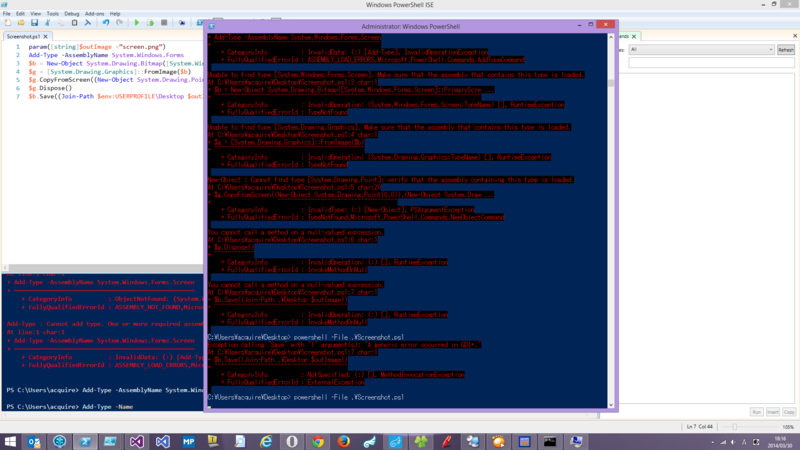
のコードだとPowerShell Hostで実行すると参照ないとかいろいろ言われます。
Unable to find type [System.Windows.Forms.Screen]. Make sure that the assembly that contains this type is loaded.
At C:\Users\acquire\Desktop\Screenshot.ps1:2 char:1
+ $b = New-Object System.Drawing.Bitmap([System.Windows.Forms.Screen]::PrimaryScre ...
+ ~~~~~~~~~~~~~~~~~~~~~~~~~~~~~~~~~~~~~~~~~~~~~~~~~~~~~~~~~~~~~~~~~~~~~~~~~~~~~~~~
    + CategoryInfo          : InvalidOperation: (System.Windows.Forms.Screen:TypeName) [], RuntimeException
    + FullyQualifiedErrorId : TypeNotFound

Unable to find type [System.Drawing.Graphics]. Make sure that the assembly that contains this type is loaded.
At C:\Users\acquire\Desktop\Screenshot.ps1:3 char:1
+ $g = [System.Drawing.Graphics]::FromImage($b)
+ ~~~~~~~~~~~~~~~~~~~~~~~~~~~~~~~~~~~~~~~~~~~~~
    + CategoryInfo          : InvalidOperation: (System.Drawing.Graphics:TypeName) [], RuntimeException
    + FullyQualifiedErrorId : TypeNotFound

New-Object : Cannot find type [System.Drawing.Point]: verify that the assembly containing this type is loaded.
At C:\Users\acquire\Desktop\Screenshot.ps1:4 char:20
+ $g.CopyFromScreen((New-Object System.Drawing.Point(0,0)),(New-Object System.Draw ...
+                    ~~~~~~~~~~~~~~~~~~~~~~~~~~~~~~~~~~~~
    + CategoryInfo          : InvalidType: (:) [New-Object], PSArgumentException
    + FullyQualifiedErrorId : TypeNotFound,Microsoft.PowerShell.Commands.NewObjectCommand

You cannot call a method on a null-valued expression.
At C:\Users\acquire\Desktop\Screenshot.ps1:5 char:1
+ $g.Dispose()
+ ~~~~~~~~~~~~
    + CategoryInfo          : InvalidOperation: (:) [], RuntimeException
    + FullyQualifiedErrorId : InvokeMethodOnNull

You cannot call a method on a null-valued expression.
At C:\Users\acquire\Desktop\Screenshot.ps1:6 char:1
+ $b.Save((Join-Path .\Desktop $outImage))
+ ~~~~~~~~~~~~~~~~~~~~~~~~~~~~~~~~~~~~~~~~
    + CategoryInfo          : InvalidOperation: (:) [], RuntimeException
    + FullyQualifiedErrorId : InvokeMethodOnNull
これは、 PowerShell ISEでは、デフォルトでSystem.Windows.Formsが参照されるけどPowerShellホストでは参照されないため。嫌ですよね、こういうの。
で、参照をAdd-Typeで追加して、出力パスは環境変数でデスクトップを見るようにします。 *1
[string]$outImage ="screen.png" Add-Type -AssemblyName System.Windows.Forms $b = New-Object System.Drawing.Bitmap([System.Windows.Forms.Screen]::PrimaryScreen.Bounds.Width,[System.Windows.Forms.Screen]::PrimaryScreen.Bounds.Height) $g = [System.Drawing.Graphics]::FromImage($b) $g.CopyFromScreen((New-Object System.Drawing.PointƐ,0)),(New-Object System.Drawing.PointƐ,0)),$b.Size) $g.Dispose() $b.Save((Join-Path $env:UserProfile\Desktop $outImage))
あとは、 PowerShellホストから読んでみます。
powershell -File .\Screenshot.ps1
とれましたね。
面倒なのは参照回りですが、うまくなってほしいですね。
追記
少しは使いやすいようにファンクションにしました。 よろしければどうぞ。
コード全文です。
できること
- デフォルトの出力先ディレクトリの存在確認とない場合の生成
- 生成されるスクリーンショット名の簡単な指定
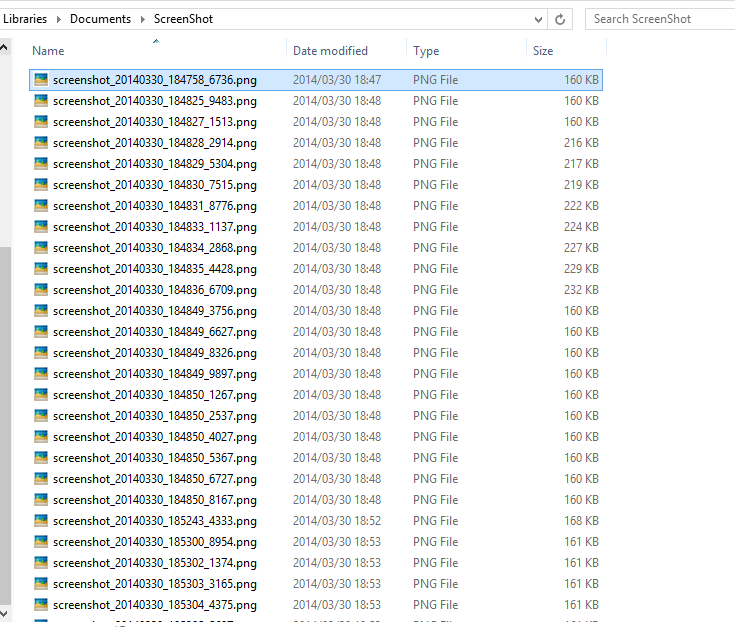
- 連写
- 連写間隔の指定
サンプル
- ただとるだけならこれで
Get-ScreenShot
- 10枚連写。間隔はデフォルト1000ms = 1sec
10 | Get-ScreenShot
こっちでもいいですよ。
Get-ScreenShot -RepeatTimes 10
- 100枚を間隔10msで撮影
100 | Get-ScreenShot -DurationMs 10
やりすぎにはご注意ください。
*1:出力パスが存在しないと、 A generic error occurred in GDI+ のエラーで起こられます
